
Your Excel Templates.
On Autopilot.
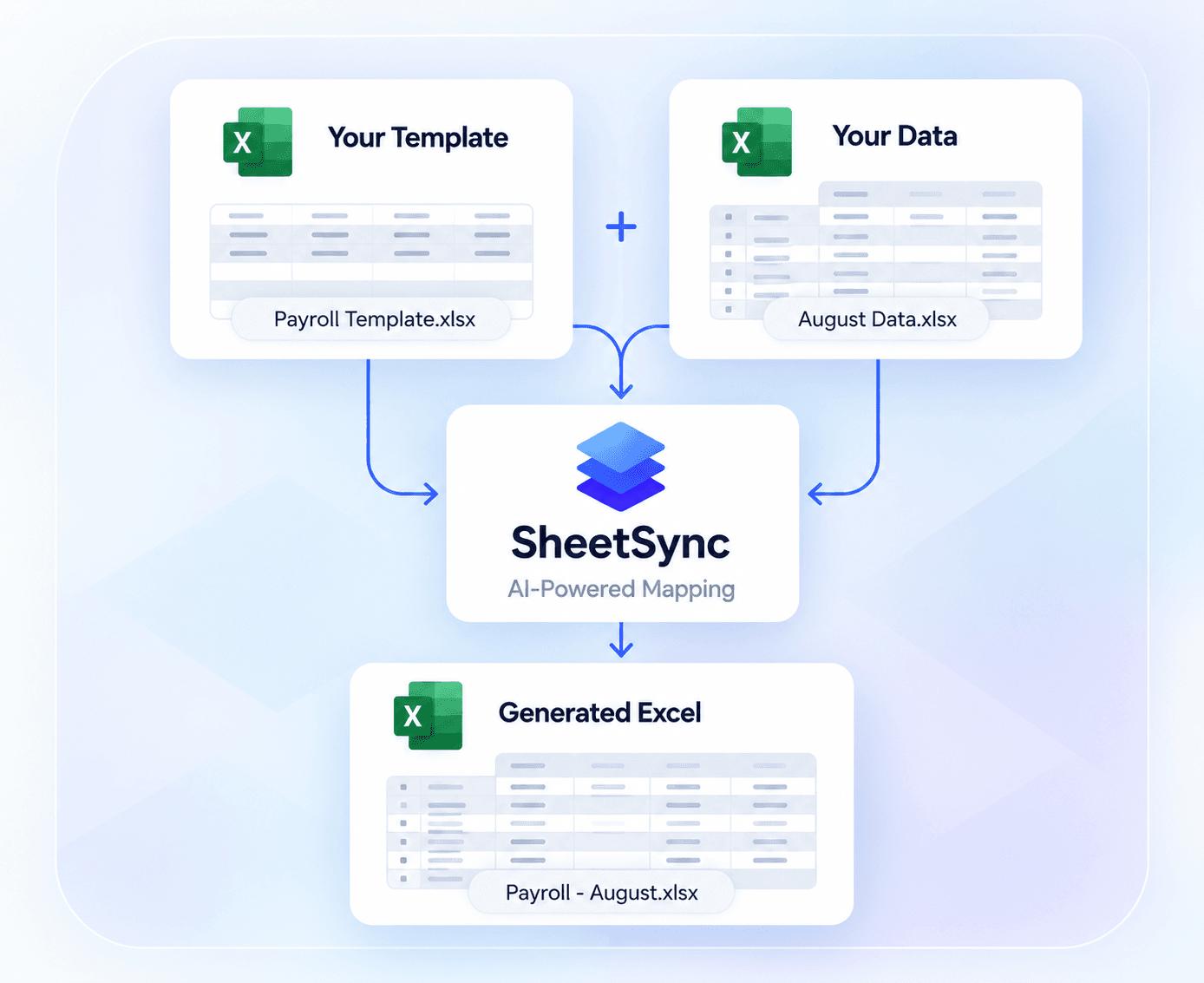
Save your templates once. Upload new data whenever you need. SheetSync automatically maps, fills, and generates your finished Excel file.
Do More with Your Excel Files
Powerful features to help you automate repetitive Excel work, save time, and get accurate results.
Save Templates
Store your Excel templates and reuse them whenever new data arrives.
Smart Column Mapping
Automatically match different column names and structures.
Supports Multiple Sheets
Handle complex workbooks with multiple tabs, formulas, and formatting.
Preserves Formulas
Keep your calculations, styles, and structure intact.
Multiple File Formats
Works with .xlsx, .xls and other common Excel formats.
Secure & Private
Your data stays private and is never used for training.
From Template to Finished File in 4 Simple Steps
A simple workflow that saves hours of manual work.
Upload & Save Template
Upload your Excel template and save it for future use.
Upload New Data
When new data is ready, just upload your data file.
AI Maps Everything
SheetSync intelligently maps the columns and fills your template.
Download Your File
Get your fully populated Excel file, ready to use.
Build Once, Use Again and Again
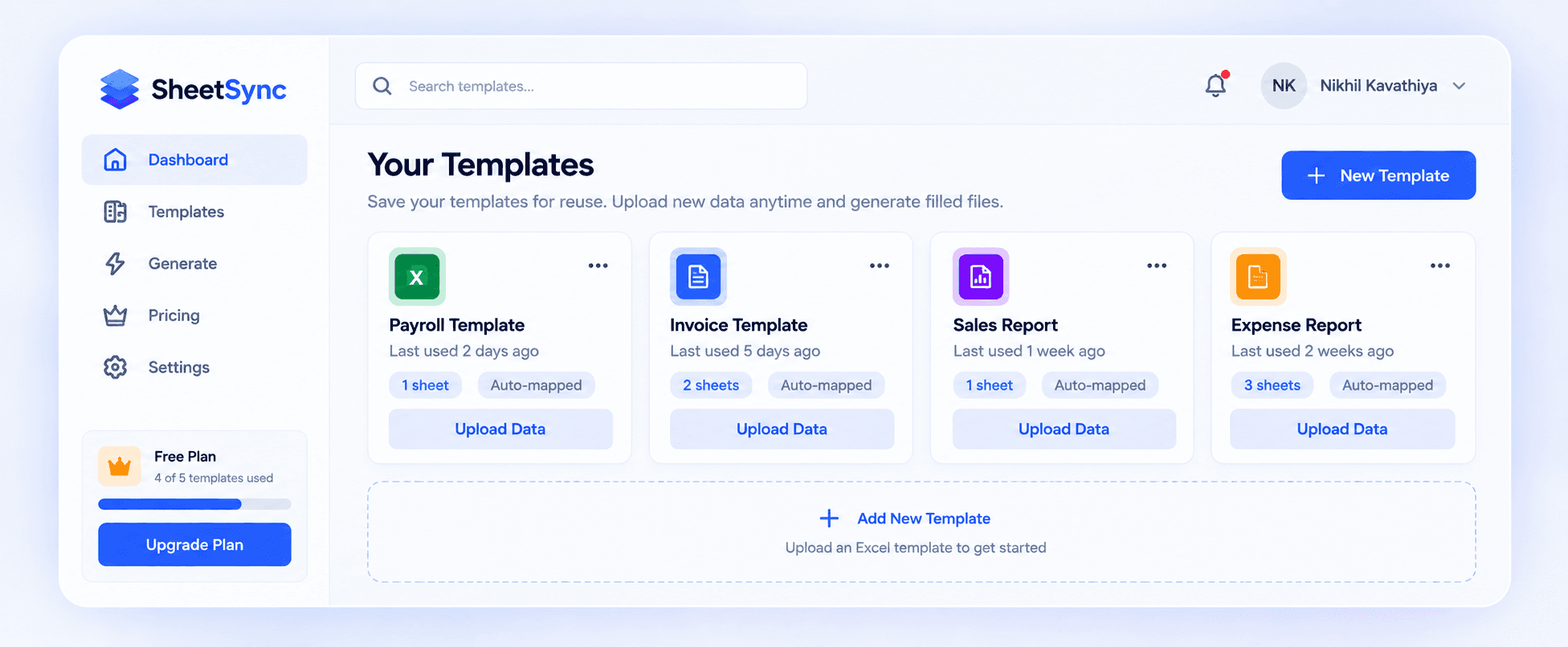
Save your frequently used templates and run them with new data anytime. No need to re-upload or remap every time.
See It in ActionStart Free. Upgrade When Your Workflows Grow.
Choose the plan that fits your needs. All plans include core features, with higher limits as you grow.
Free
Try SheetSync
- 5 saved templates
- 12 generations per template (lifetime)
- 25 MB max file size
- Multiple sheets
- Formula preservation
- Download files
- Community support
Basic
For Individuals
- 25 saved templates
- 100 data runs/month
- No per-template limit
- 50 MB max file size
- Multiple sheets
- Smart column mapping
- Formula preservation
- Email support
Pro
For Professionals
- 100 saved templates
- 500 data runs/month
- No per-template limit
- 100 MB max file size
- Advanced mapping
- Template versioning
- Batch processing
- Priority support
Business
For Teams
- Unlimited templates
- 2,000 data runs/month
- No per-template limit
- 250 MB max file size
- Advanced transformations
- Team collaboration
- API access
- Priority support
Questions, Answered
Everything people usually ask before their first upload.
SheetSync reads and writes .xlsx and .xls files. Upload the Excel template you already use plus a raw data file in the same family of formats, and you'll get back a real Excel workbook — not a flattened CSV.
Yes. SheetSync reads your template's structure directly in the browser and only changes what needs new data. Formulas, cell styles, merged cells, multiple sheets and charts stay exactly as you built them.
The template's layout is parsed with deterministic code, not guesswork. An AI step is only used to decide which column in your incoming data feeds which column in the template — so mapping adapts to renamed or reordered columns without you setting anything up by hand.
No. Your templates and data are used only to generate your file and are never used for model training.
On the Free plan, each saved template can be generated up to 12 times before it locks — replace it or upgrade to keep going. Paid plans remove that per-template cap and instead give you a larger monthly pool of generations shared across all your templates.
Yes. Upgrade, downgrade or cancel from your account settings whenever you like — there's no lock-in contract on any plan.
Still have questions?
Find answers in our FAQ or reach out to our support team.